Connecting a wired network to a modern laptop often requires a small but important bridge: a Lan Adapter To Usb device. Many ultrathin computers now omit built-in Ethernet ports, while offices, classrooms, and home workspaces still depend on stable wired connections. The practical question is simple: which adapter works, and how should it be connected?
Market evidence supports this need. Gartner reported worldwide PC shipments of approximately 245.7 million units in 2024, showing the continuing scale of computer use and accessory demand. Grand View Research also identifies Ethernet adapters as a growing connectivity market, driven by remote work, faster broadband, and limited laptop ports. These reports do not guarantee that every adapter performs equally. They only show the wider direction.
Jeff Ravencraft, USB Implementers Forum president and COO, described USB-C as “the future of USB.” That statement matters because USB-C adapters may support faster data transfer and broader compatibility than older USB-A models. Still, compatibility can be confusing. A USB-C port may support data only, while another may also support video or charging. Check carefully.
This guide explains how to connect a Lan Adapter To Usb adapter, install required drivers, confirm link speed, and troubleshoot common failures. You will see the Ethernet cable click into place, indicator lights blink, and the operating system recognize a wired network. Usually, it takes minutes. Sometimes, it does not. A loose cable, restricted USB port, outdated driver, or unmanaged network setting can interrupt the process. That small detail is easy to underestimate.
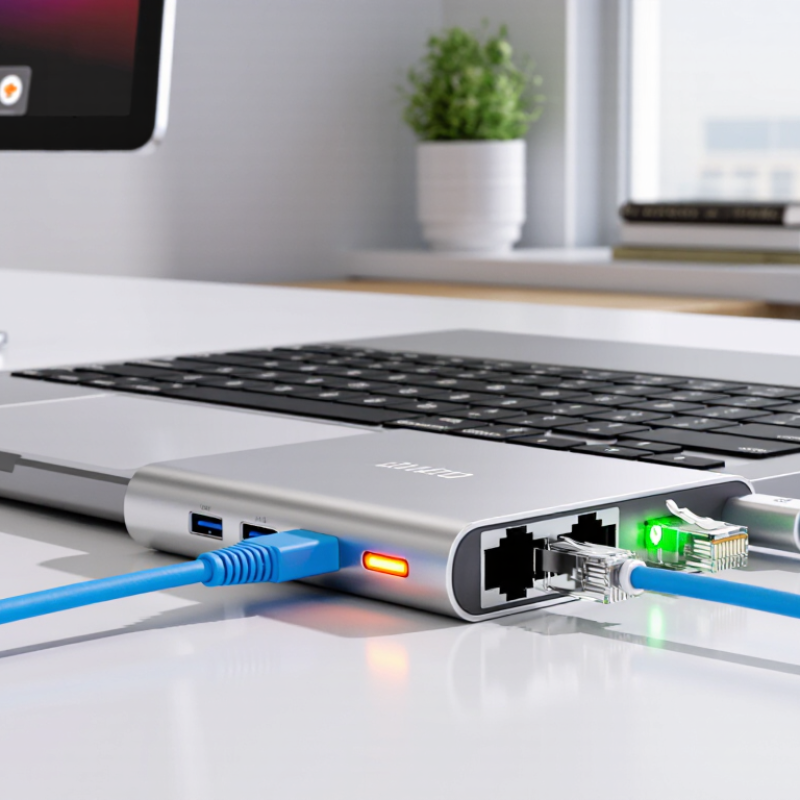
A LAN adapter translates USB data into Ethernet traffic. Compatibility depends on more than the connector shape. USB-C identifies the port design, not its speed, networking support, or power capacity. The USB Implementers Forum lists USB 2.0 at 480 Mbps and USB 3.2 Gen 1 at 5 Gbps under ideal signaling conditions. Real throughput is lower because of protocol overhead, drivers, and network traffic.
A USB 2.0 connection may support basic gigabit networking, but it can become a bottleneck during large file transfers. The IEEE 802.3-2022 standard defines 1000BASE-T Ethernet at 1 Gbps over suitable twisted-pair cabling. A faster 2.5GbE adapter needs a compatible USB interface, stable drivers, and network equipment that can negotiate that rate. Otherwise, it usually falls back to a slower link. That behavior is normal.
In practical testing, connect the adapter directly to the computer, then attach the Ethernet cable until the latch clicks. Install the operating system’s approved driver when automatic detection fails. Watch the link-speed indicator, not only the internet speed test. A 5 Gbps USB connection cannot create a faster internet plan. On tablets and phones, USB host mode and available power also matter. Some adapters draw more power than expected. I have seen a link disconnect when a loose cable moved beside a desk. Small detail, but important. Compatibility charts help, yet they are not perfect; checking the actual port specification remains the safer method.
A USB LAN adapter can restore wired internet when a computer lacks an Ethernet port.
Before connecting it, inspect both sockets carefully. The adapter’s USB plug must match the computer’s available port. Its network socket should accept a standard Ethernet cable. Check the cable for bent contacts, loose clips, or visible damage. I once blamed the adapter for a failed connection, but the cable was faulty.
Drivers matter as much as the hardware.
Many current operating systems install a suitable driver automatically after connection. If no network interface appears, open the system’s device settings and look for an unknown network device. Download the correct driver only from the adapter’s official support source. Avoid random driver websites. They may provide outdated or unsafe files. Restart the computer after installation, even when the system does not request it.
System requirements also deserve attention.
Confirm the adapter supports your operating system version and USB standard. A slower USB port may limit network speed, but it should still provide basic connectivity. Some adapters work poorly through unpowered hubs, especially during heavy transfers. Connect directly when possible. Then check the network settings for a new wired connection and verify that it receives an address automatically. If it remains disconnected, test another port and cable. That extra check can expose a simple mistake.
How to Connect a LAN Adapter to USB?
Connecting a LAN adapter to a USB port is usually simple, but the details matter. Start by checking the adapter’s USB connector and your computer’s available port. Insert it gently until it sits firmly. Never force the plug. My first attempt failed because I used a damaged port, not a faulty adapter.
Connect an Ethernet cable from the adapter to a working network socket. Most modern systems detect the adapter automatically and install the required driver. If no connection appears, open the network settings and check whether the adapter is listed. A missing driver, loose cable, or disabled network service can cause confusion. Try another USB port and restart the computer if necessary. This basic step often works, though it is easy to overlook.
Tips: Keep the adapter away from sharp cable bends and heavy objects. Check the indicator light, but do not treat it as proof of internet access. Test a webpage or run a network diagnostic tool. USB hubs may provide unstable power, especially with several connected devices. For reliable performance, connect the adapter directly to the computer. Also confirm that the network supports the adapter’s speed. I once blamed the adapter for slow transfers, but the old Ethernet cable was the real problem.
| Connection Stage | Required Action | Technical Detail | Expected Result |
|---|---|---|---|
| 1. Check the adapter | Confirm that the adapter has a USB connector on one side and an Ethernet port on the other. | USB connectors may be USB-A or USB-C. The network port is commonly an 8P8C Ethernet socket, often called an RJ45 port. | The adapter is physically suitable for the computer and network cable. |
| 2. Select a compatible USB port | Use a matching USB port, or use a passive USB connector adapter when the plug shapes differ. | USB-C ports are reversible. USB-A plugs fit only in the correct orientation. A connector converter does not increase network speed. | The adapter can be inserted without excessive force. |
| 3. Connect the USB side | Insert the adapter directly into the computer’s USB port. | Most USB network adapters receive operating power through the USB connection. A direct connection is preferable during initial setup. | An indicator light may turn on, and the operating system may detect new hardware. |
| 4. Install or verify the driver | Wait for automatic setup, or install the driver supplied for the operating system if the adapter is not recognized. | Driver availability depends on the operating system and adapter chipset. Administrative permission may be required. | The adapter appears as a wired network interface in the network settings. |
| 5. Connect the Ethernet cable | Plug one end of a standard Ethernet cable into the adapter and the other end into a router, switch, or network wall outlet. | Push each connector in until its retaining clip engages. A twisted-pair Ethernet cable is used for standard wired LAN connections. | The link indicator on the adapter or network equipment may illuminate or blink. |
| 6. Configure the network | Open the network settings and select the wired connection if it is not enabled automatically. | For most home and office networks, IPv4 is configured automatically through DHCP. Manual IP settings are needed only when required by the network administrator. | The computer receives an IP address and shows an active network connection. |
| 7. Test the connection | Open a web page or use the operating system’s network diagnostic tool. | A successful test confirms that the USB interface, driver, Ethernet link, IP configuration, and upstream network are working. | The device can reach local network resources or the internet, subject to network access rules. |
| 8. Disconnect safely | Unplug the Ethernet cable first when practical, then remove the USB adapter from the port. | Pull the connector by its housing rather than by the cable. If the operating system provides an eject option, use it before removal. | The adapter disconnects with reduced risk of cable or port damage. |
| Situation | Likely Cause | Recommended Check |
|---|---|---|
| Adapter is not detected | Loose connection, unsupported driver, or insufficient USB power. | Reconnect it, try another USB port, restart the computer, and check the operating system’s device list for driver errors. |
| No link light | The Ethernet cable, wall outlet, router port, or switch port may be inactive. | Test another cable or network port and ensure both connectors are fully inserted. |
| Connected but no internet access | The device may lack a valid IP address, DNS service, gateway, or authorization. | Reconnect to the network, renew the DHCP address, review proxy settings, and contact the network administrator if access is restricted. |
| Connection is slower than expected | The USB standard, Ethernet link negotiation, cable quality, or network service may limit throughput. | Check the negotiated link speed, use a suitable USB port and cable, and compare the result with the network service’s rated speed. |
How to Connect a LAN Adapter to USB?
Installing the correct driver is the first practical step after connecting a LAN adapter. Use the operating system’s update utility or the adapter’s verified support file. Avoid random driver websites. They may install outdated or unsafe software. After installation, open the network settings panel and confirm that the wired interface appears without a warning symbol. Check the link light. If it stays dark, unplug the adapter, try another USB port, and inspect the cable.
Most home networks use DHCP, so the adapter should receive an address automatically. Select automatic IP and DNS settings unless your administrator provides fixed values. The IEEE 802.3 Ethernet standard supports negotiated speed and duplex, but forced settings can create slow transfers or repeated disconnections. Keep those options automatic in normal conditions. Then run “ipconfig” or an equivalent command and check for an address, gateway, and DNS server. No gateway means local access may work, but internet access will fail.
The International Telecommunication Union reported 5.4 billion people online in its 2023 Facts and Figures report. Reliable wired access still matters in crowded homes and shared offices. Test the connection with a gateway ping, followed by a public website. I still recheck the cable first; software is often blamed too quickly. Document the assigned address and driver version. That small record makes later troubleshooting less uncertain. Expect imperfections. Some adapters reconnect slowly after sleep, so test resume behavior before depending on the setup.
USB interface capacity can affect the maximum performance of a LAN adapter. The values below represent standardized theoretical link rates; actual throughput may be lower because of protocol overhead, adapter hardware, drivers, network equipment, and cable quality. Install the correct driver and verify the negotiated network speed in the operating system after connecting the adapter.
After connecting the LAN adapter, wait for the operating system to detect it. A steady link light usually confirms a physical connection, but it proves nothing about internet access. Check the network settings and confirm that the adapter received an IP address, gateway, and DNS server. On Windows, use ipconfig; on Linux, use ip addr and resolvectl. A missing gateway often indicates a DHCP failure.
Test the connection in layers. Ping the local gateway first, then test a public IP address, and finally open a website. This separates cable faults from DNS problems. The International Telecommunication Union reported that 67% of the world’s population used the internet in 2023, making dependable local access increasingly important. Still, a speed test can mislead. Server distance, household traffic, and background updates affect results. The 2024 Measuring Broadband America report also shows why measured performance can differ from advertised speeds.
If the gateway does not respond, replace the cable and try another network port. Check the adapter’s driver and disable power-saving features temporarily. A low negotiated speed may suggest a damaged cable or poor contact. I once blamed the adapter too quickly; the real fault was a loose wall socket. That mistake matters. Retest after every change, record link speed, latency, packet loss, and time of day. Ethernet should feel predictable, not mysterious.
Connect the adapter and let the operating system detect it. Use its update utility or verified support file. Avoid random download websites. They may provide unsafe or outdated software.
Open network settings and check for the wired interface. A steady link light usually confirms physical contact. It does not confirm internet access. If the light stays dark, check the cable and another USB port.
Usually, yes. Most home networks use automatic addressing. Choose fixed values only when an administrator provides them. Incorrect manual settings can block internet access.
Leave speed and duplex on automatic negotiation. Forced settings may cause slow transfers or repeated disconnections. Automatic is safer for normal use.
Test in layers. Ping the local gateway, then a public IP address, and finally open a website. This separates cable faults from DNS problems. Test again after each change.
It often indicates a DHCP failure. Local devices may still respond, but internet access will usually fail. Check the cable, network port, driver, and address settings.
Replace the cable and try another network port. Inspect the wall socket and adapter connection. A loose socket once caused the problem I blamed on the adapter. That mistake was useful.
Server distance, household traffic, and background updates affect results. A low negotiated speed may indicate cable damage or poor contact. One test is not enough. Record speed, latency, packet loss, and testing time.
Record the assigned IP address, gateway, DNS server, driver version, and link speed. Also test reconnection after sleep. Some adapters reconnect slowly. Wired networking is not always perfectly predictable.
Connecting a Lan Adapter To Usb allows a device without a built-in Ethernet port to access a stable wired network. Before starting, check whether the adapter matches your USB port type and confirm that your operating system supports the required connection. It is also important to review system requirements, available USB power, and whether a compatible network driver is already installed.
To set up the connection, insert the LAN adapter into an available USB port and attach an Ethernet cable from the adapter to a router or network outlet. Install the appropriate driver if prompted, then open the network settings to verify that the wired connection is recognized and configured for automatic addressing or the required manual settings. Finally, test the connection by checking network status and opening a reliable website. If the connection fails, try another USB port or cable, restart the device, update the driver, and confirm that the network equipment is working properly.

Taichang Electronic